
Run Payroll
Hour Timesheet simplifies the payroll process, ensuring accuracy and compliance. With automatic timesheet hours sent to payroll, the system eliminates manual data entry, streamlines workflows, and helps ensure compliance.
Follow the steps below to process payroll efficiently from within Hour Timesheet
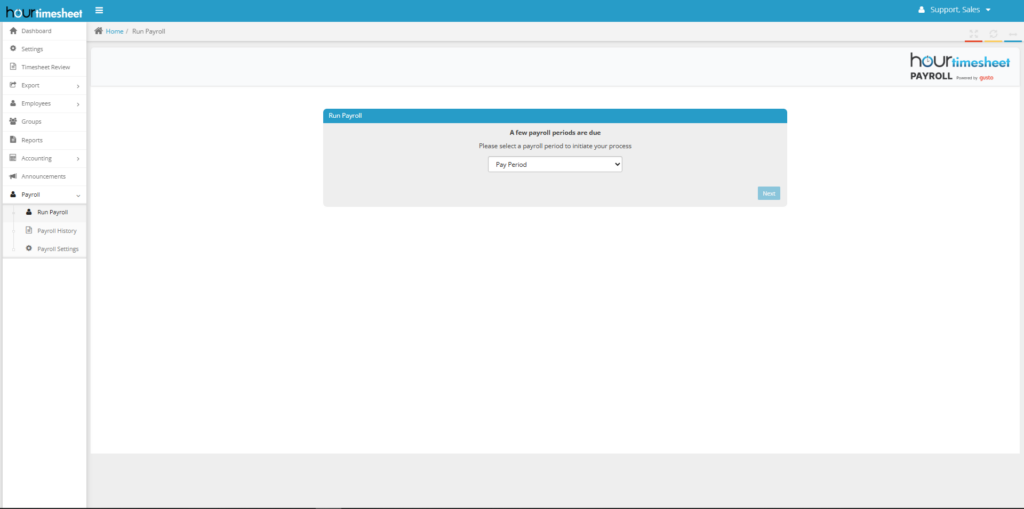
Access the payroll menu from the left navigation bar and select Run Payroll to start the process
Choose the payroll period for which you want to process payroll. Ensure the correct pay period is selected and click Next
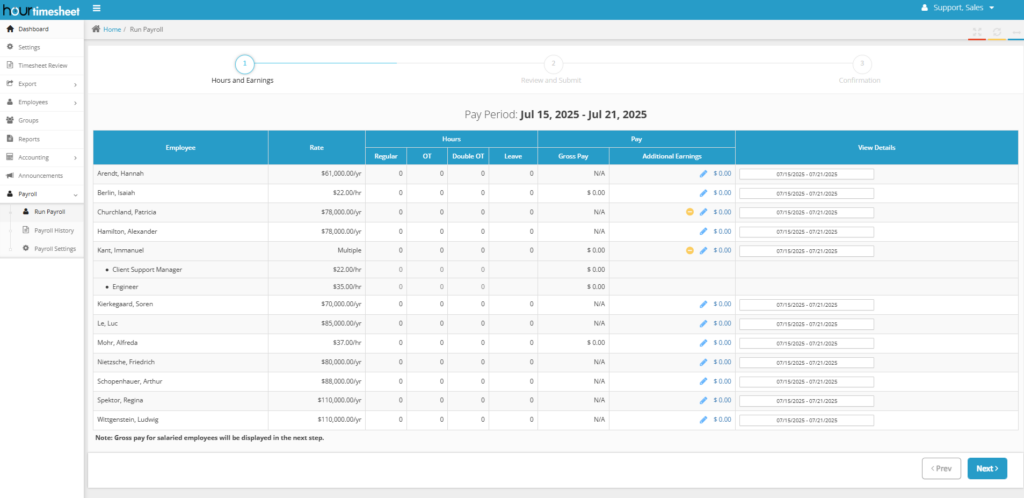
The system will display the Hours and Earnings page, which includes employee hours data. Ensure that all timesheets are approved before proceeding. If any timesheets are pending, approve them before moving forward.
Once timesheets are approved, click Next. This will take you to the Review and Submit step.
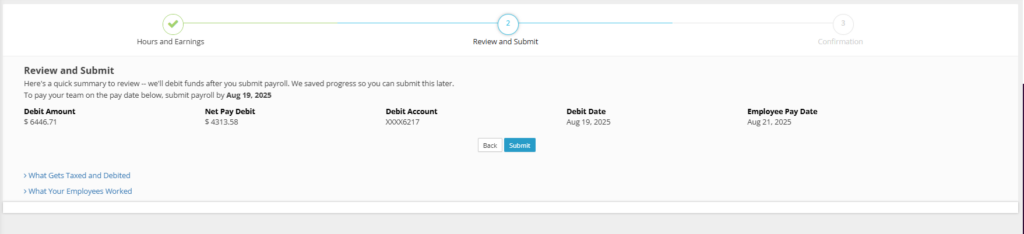
Review the payroll summary on the Review and Submit page to ensure all details are correct. When ready, click Submit to finalize payroll processing
Additional Help
Here are some tips that may help:
- Ensure all timesheets are approved before starting payroll to avoid delays.
- Double-check employee hours and earnings data for accuracy.
- If notifications are enabled, users with supervisor or admin roles will receive updates about payroll actions.
If you need additional assistance, please schedule time with customer support.