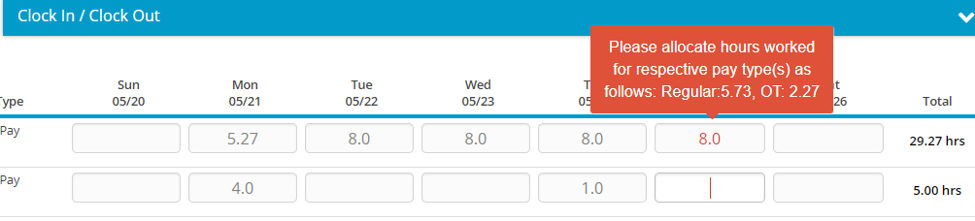
This feature allows the system admin to establish a business rule to set a threshold on the timesheet so that employees are forced to charge time to an “overtime” pay type once certain criteria is met (defined by the rule). Once configured; the employees will be notified upon timesheet entry that hours must be moved to a pay type associated with overtime. These hours will be identified in RED on the timesheet to the employee.
Create Overtime Business Rules
Login to Hour Timesheet as Admin or Accountant
Navigate to Settings/Overtime Rules tab
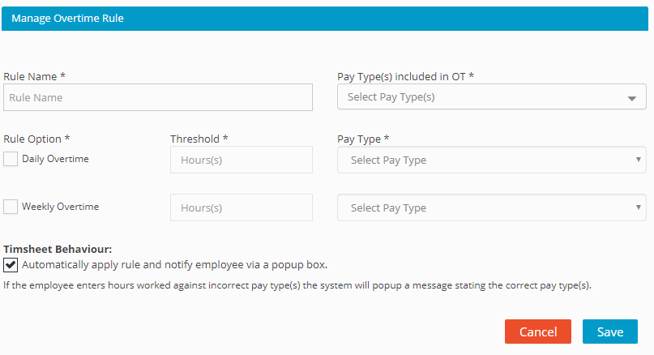
Click Create New Overtime Rule
Enter Rule Name (description of rule)
Identify Pay Type(s) included in OT – these pay types should be the pay types associated with core hours (Regular, Hourly, etc.).
Select check box with Rule Option. This setting allows the user to select a “Daily” or “Weekly” overtime Click Ok.
Identify Pay Types from drop down box that contain the overtime pay type that must be used once a user has exceeded the daily and/or weekly overtime rule.
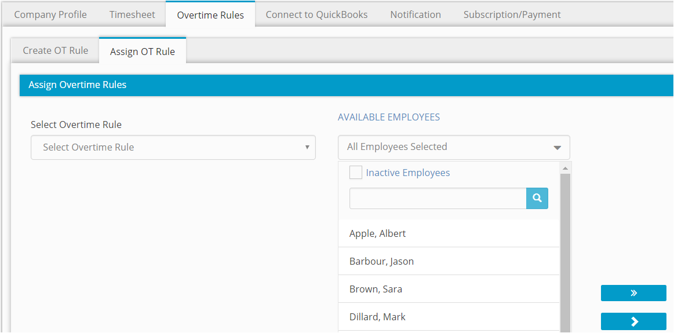
Assign Overtime Rules
Click the rule from the drop-down box
Move the Employees from the “Available” box to the “Selected” box – these can be selected one at a time or be filtered by group.