Have a Question?
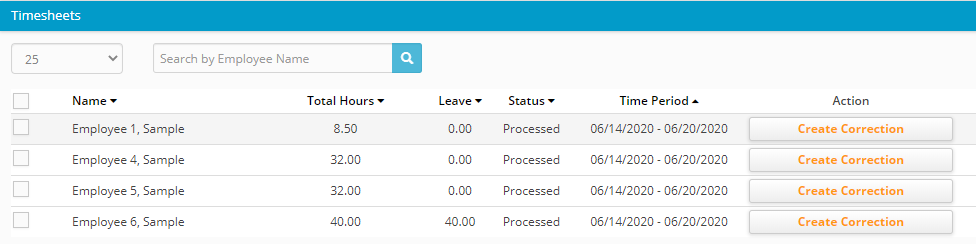
A timesheet is marked as Processed once it’s been exported to QuickBooks. A processed timesheet cannot be edited for audit control purposes. If you have a timesheet that has been marked as Processed and needs to be edited, you must create a correction timesheet. The proper workflow for correction timesheets are as follows.
- In your Hour Timesheet account, navigate to the Timesheet Review page
- Select the timesheet to be corrected/edited
- Click the yellow Correction button
- You will now see a duplicate copy of the original timesheet. This copy is where you will make the edits/corrections. Make the necessary changes to the timesheet.
- Have the user (employee/contractor) Submit the updated copy of the timesheet
- Have a manager/supervisor Approve the updated copy of the timesheet.
- At this time, the timesheet is ready to be Exported again to QuickBooks
- But first, log in to your QuickBooks company file and navigate to the employee’s timesheet data and delete the entire data for this period.
- Once the time data has been removed from QuickBooks, navigate back to your Hour Timesheet account and follow the steps to Export the revised timesheet.