
-
Accounting Codes/Leave
-
Accounting/Admin Role
-
Accounting/Codes
-
Accounting/Leave Request
-
Announcements
-
Custom
-
Custom
-
Dashboard
-
Employee Role Related
-
Employees
-
Export
-
Exporting Data
-
Frequently Asked Questions
-
General Setup Instructions
- Billable vs Non Billable
- Creating Groups
- Employee Authorized Charge Code Associations
- Manage Charge Codes (Non QuickBooks)
- Manage Charge Codes (QuickBooks)
- New Site Setup Steps
- Overtime Rules
- Setting up and Defining System Roles
- Setting up leave in Hour Timesheet
- Setup Guide For Stand Alone Accounts
- Smart Phone App
- Step 1. Setup Leave Types
-
Groups
-
Importing Data
-
Misc
-
Mobile App
-
My Timesheet
-
Options to Capture Employee Time
-
Payroll
-
QuickBooks Desktop
-
QuickBooks Desktop
-
QuickBooks Desktop
-
QuickBooks Online
-
QuickBooks Online
-
QuickBooks Online
-
Reports
-
Reports
-
Request Leave
-
Run Payroll
-
Run Payroll
-
Schedule
-
Schedules
-
Settings Menu
-
Supervisor Reports
-
Timesheet Review
-
Timesheet Review
Creating and Editing Groups
Video -> Setting Up Groups and Supervisors
Timesheet Groups
Using the Hour Timesheet group feature is optional. Timesheet Groups are used in Hour Timesheet to structure employees. Employees may be associated to one or many groups. By creating groups and assigning employees to groups, certain features and functions can be viewed by individual group instead of the company as a whole.
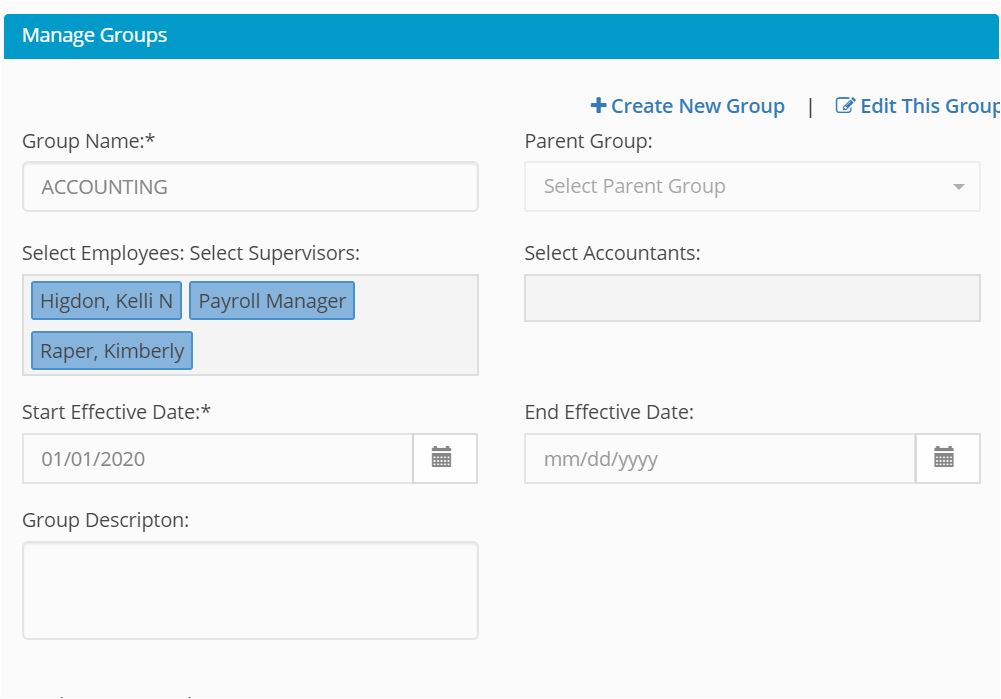
Creating Groups
1. Login to Hour Timesheet as Admin or Accountant
2. Navigate to Group menu
3. Click New Group or Edit Group link
4. Enter group detail
5. Enter group supervisor – see note 1
6. Enter group accounting role – see note 2
7. Click employee(s) to be associated to group
8. Click the > icon
9. Click the Save button to complete
Note 1 – Supervisors – System role allowing users to manage employee timesheet data. This includes approving, rejecting and editing employee timesheet data as well as running reports.
Note 2 – Accountants – System role allowing users ability to export approved timesheet data to specified accounting and/our payroll software. Users with the accounting role also have access to run report