
Have a Question?
-
Accounting Codes/Leave
-
Accounting/Admin Role
-
Accounting/Codes
-
Accounting/Leave Request
-
Announcements
-
Custom
-
Custom
-
Dashboard
-
Employee Role Related
-
Employees
-
Export
-
Exporting Data
-
Frequently Asked Questions
-
General Setup Instructions
- Billable vs Non Billable
- Creating Groups
- Employee Authorized Charge Code Associations
- Manage Charge Codes (Non QuickBooks)
- Manage Charge Codes (QuickBooks)
- New Site Setup Steps
- Overtime Rules
- Setting up and Defining System Roles
- Setting up leave in Hour Timesheet
- Setup Guide For Stand Alone Accounts
- Smart Phone App
- Step 1. Setup Leave Types
-
Groups
-
Importing Data
-
Misc
-
Mobile App
-
My Timesheet
-
Options to Capture Employee Time
-
Payroll
-
QuickBooks Desktop
-
QuickBooks Desktop
-
QuickBooks Desktop
-
QuickBooks Online
-
QuickBooks Online
-
QuickBooks Online
-
Reports
-
Reports
-
Request Leave
-
Run Payroll
-
Run Payroll
-
Schedule
-
Schedules
-
Settings Menu
-
Supervisor Reports
-
Timesheet Review
-
Timesheet Review
< All Topics
Print
Using Web Clock to Clock In and Out
Posted
Updated
Byhourtimesheet

Using web clock to clock in and out
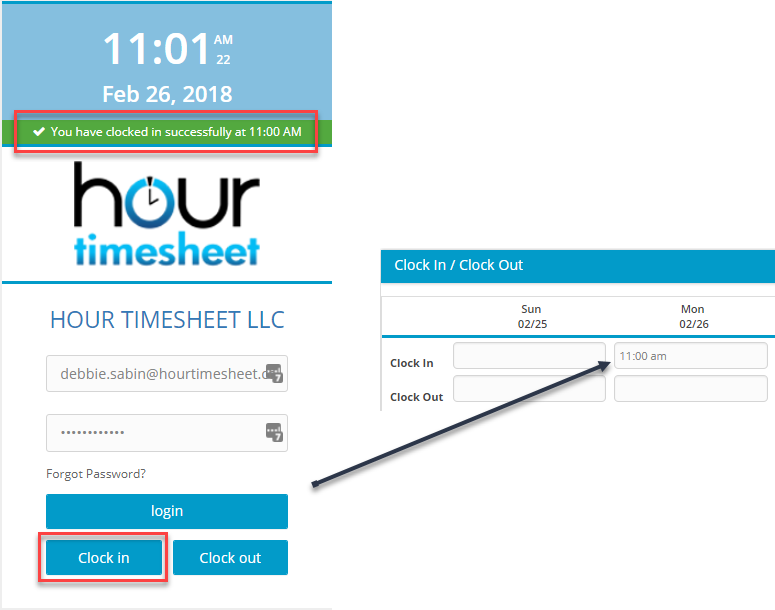
1. Clock in and out on any web enabled computer.
2. Navigate to the Hour Timesheet login page
3. Enter username
4. Enter password
5. Click the “Clock In” button to capture the current “In” time on the timesheet
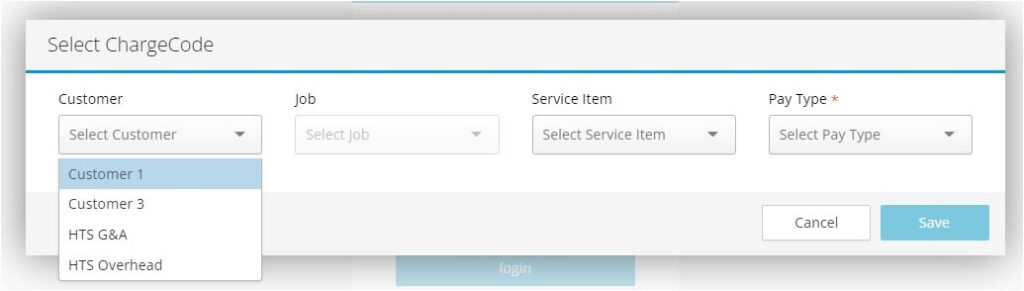
6. Select the appropriate charge code. Your punch will now show as an “in” punch on the timesheet upon logging in to HTS.
7. Upon completion of the task, navigate back to the HTS login page, enter your credentials and select the Clock “Out” button. At the time of the clock “out” HTS will input the difference between the “in” and the “out” on the job selected on the “in” punch.
Clocking In/Out on Mobile App
View knowledge-base link for Mobile Time Clock
Table of Contents