
Have a Question?
-
Accounting Codes/Leave
-
Accounting/Admin Role
-
Accounting/Codes
-
Accounting/Leave Request
-
Announcements
-
Custom
-
Custom
-
Dashboard
-
Employee Role Related
-
Employees
-
Export
-
Exporting Data
-
Frequently Asked Questions
-
General Setup Instructions
- Billable vs Non Billable
- Creating Groups
- Employee Authorized Charge Code Associations
- Manage Charge Codes (Non QuickBooks)
- Manage Charge Codes (QuickBooks)
- New Site Setup Steps
- Overtime Rules
- Setting up and Defining System Roles
- Setting up leave in Hour Timesheet
- Setup Guide For Stand Alone Accounts
- Smart Phone App
- Step 1. Setup Leave Types
-
Groups
-
Importing Data
-
Misc
-
Mobile App
-
My Timesheet
-
Options to Capture Employee Time
-
Payroll
-
QuickBooks Desktop
-
QuickBooks Desktop
-
QuickBooks Desktop
-
QuickBooks Online
-
QuickBooks Online
-
QuickBooks Online
-
Reports
-
Reports
-
Request Leave
-
Run Payroll
-
Run Payroll
-
Schedule
-
Schedules
-
Settings Menu
-
Supervisor Reports
-
Timesheet Review
-
Timesheet Review
< All Topics
Print
Employee Role – Viewing Prior Period Timesheets
Posted
Updated
ByDebbie Sabin
Past Timesheet Data
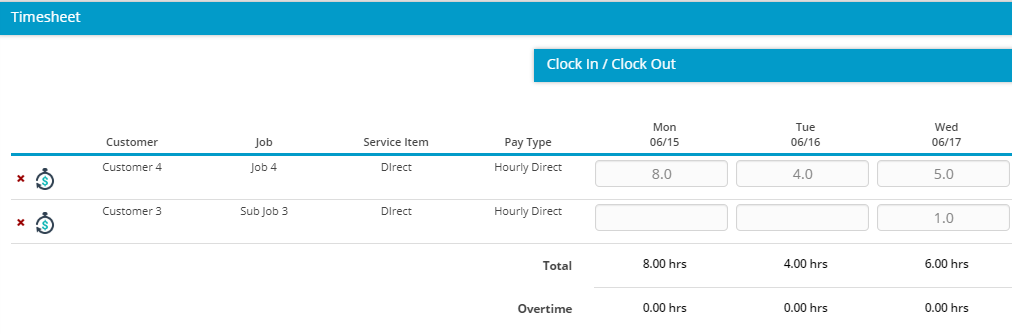
Employee Role – Viewing past timesheet data in Hour Timesheet
1. Navigate to My Timesheet menu
2. Click the Calendar icon
3. Select the Date of the timesheet wanting to view.
Employee Role – Viewing Past Timesheet Data [Video Clip]
Correction Time Sheets
Once a time sheet is Processed, the only way to change the data on the time sheet is to create a Correction time sheet. Clicking the Create Correction link on the Review Timesheet page, a 2nd copy of the timesheet is created. Once a correction exists, the employee and/or supervisor can make the required adjustments. Correction time sheets must still be signed and approved.
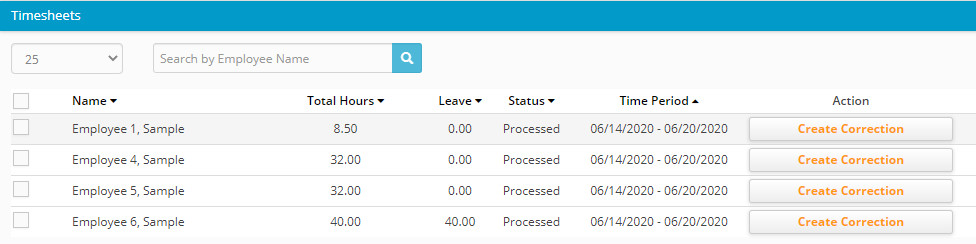
Table of Contents