-
Accounting Codes/Leave
-
Accounting/Admin Role
-
Accounting/Codes
-
Accounting/Leave Request
-
Announcements
-
Custom
-
Custom
-
Dashboard
-
Employee Role Related
-
Employees
-
Export
-
Exporting Data
-
Frequently Asked Questions
-
General Setup Instructions
- Billable vs Non Billable
- Creating Groups
- Employee Authorized Charge Code Associations
- Manage Charge Codes (Non QuickBooks)
- Manage Charge Codes (QuickBooks)
- New Site Setup Steps
- Overtime Rules
- Setting up and Defining System Roles
- Setting up leave in Hour Timesheet
- Setup Guide For Stand Alone Accounts
- Smart Phone App
- Step 1. Setup Leave Types
-
Groups
-
Importing Data
-
Misc
-
Mobile App
-
My Timesheet
-
Options to Capture Employee Time
-
Payroll
-
QuickBooks Desktop
-
QuickBooks Desktop
-
QuickBooks Desktop
-
QuickBooks Online
-
QuickBooks Online
-
QuickBooks Online
-
Reports
-
Reports
-
Request Leave
-
Run Payroll
-
Run Payroll
-
Schedule
-
Schedules
-
Settings Menu
-
Supervisor Reports
-
Timesheet Review
-
Timesheet Review
How to Edit a Timesheet that is Exported
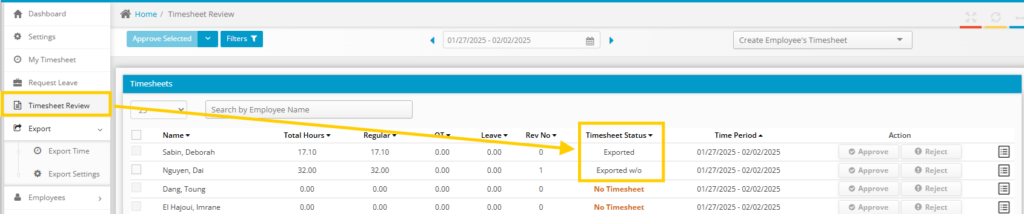
After using the Export Timesheet Data to a 3rd party payroll solution, the timesheet status will be changed from “Approved” to “Exported”. The process of exporting the data locks the timesheets locks the data so that employees and managers cannot make changes.

To edit an “exported” timesheet,
1. Click the menu item Export and then click the Export Time sub menu.
2. Navigate to the correct timesheet period
3. Place a check in the box on the left of the user’s name(s)
4. Click the Export Selected option at the top of the page.
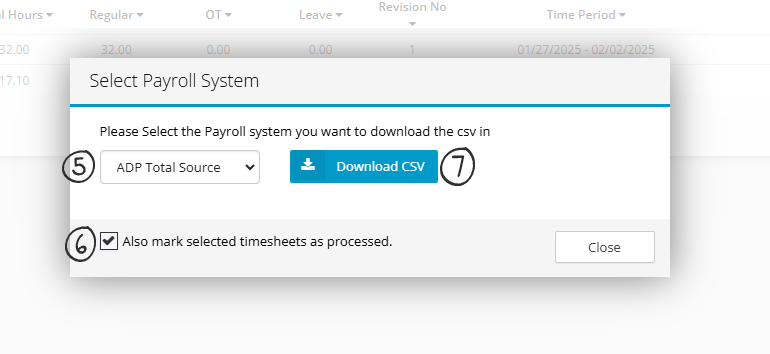
5. Chose from the list of payroll software options
6. Place a check in the box Also mark selected timesheets as processed
7. Click the Download CSV button and close the popup screen
8. Navigate back to the Timesheet Review menu and locate the same timesheet(s) from above
9. You will now see an updated status that shows Create Correction
10. Click the Create Correction link to unlock the timesheet to make the necessary updates.

Below is a screenshot steps 9 and 10 from above. Clicking the Create Correction link will allow you to update the timesheet.