Clock In/Out against a Charge Code
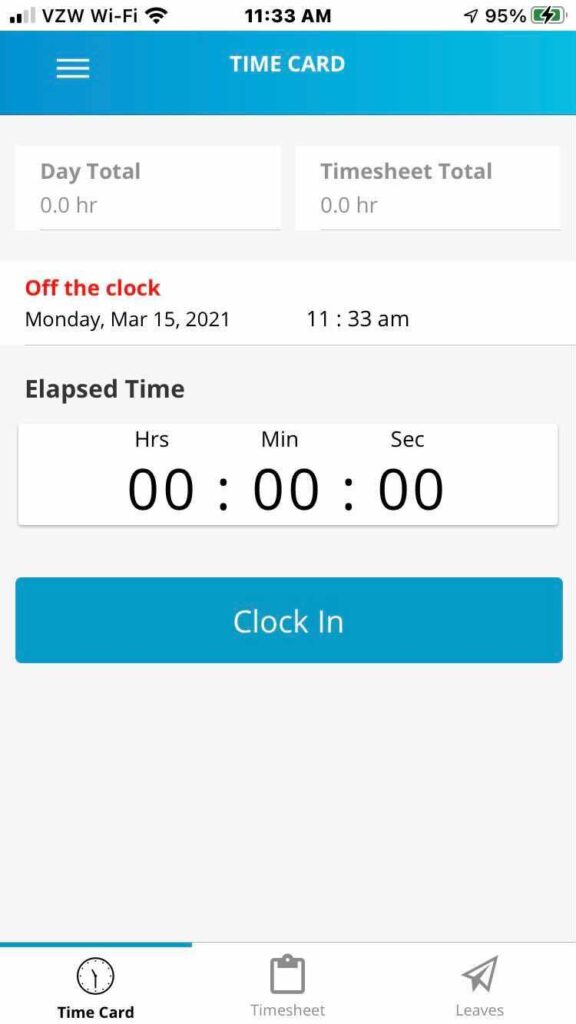
Employees who are required to clock in/out daily will use this option. Users can have as many in/out pairs as needed (breaks, lunch, etc.). This feature is optional.
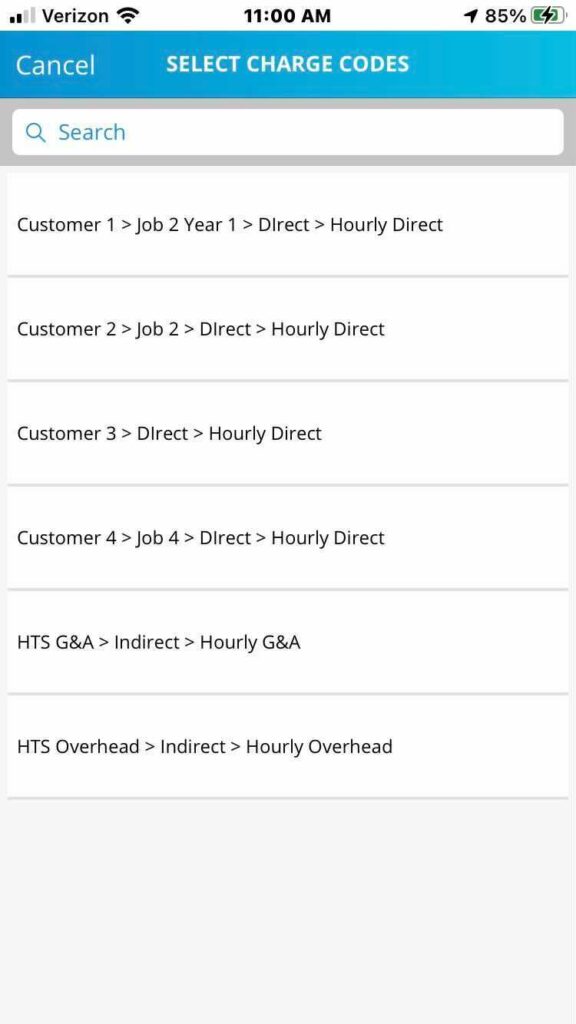
Employees will be required to select a job code/project/dept/etc. upon clocking in. Upon clocking out, the employee’s calculated time will be added to the “Hours Worked” section of the timesheet against the selected job code.
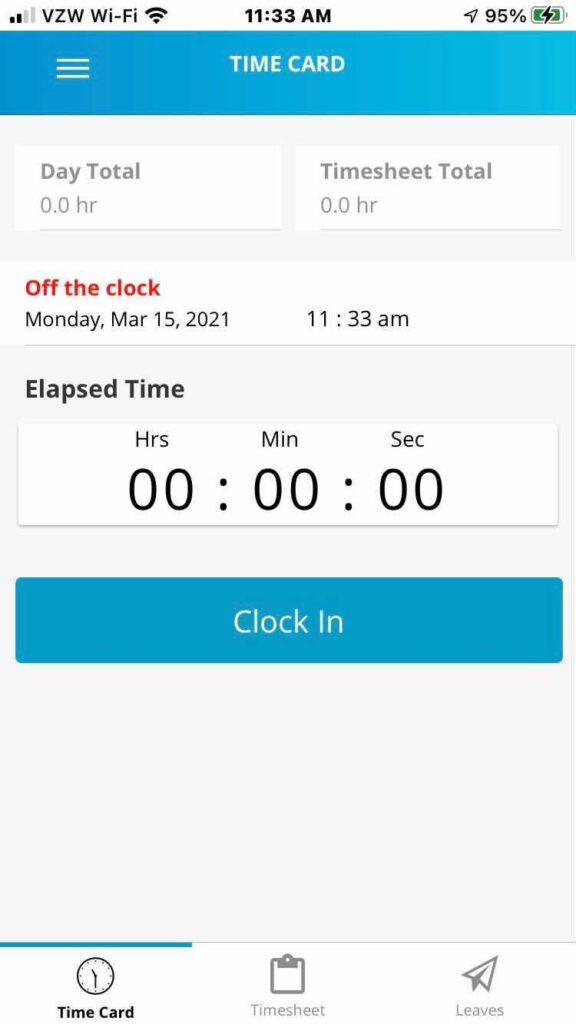
- Click Clock In
- Select Charge Code from list
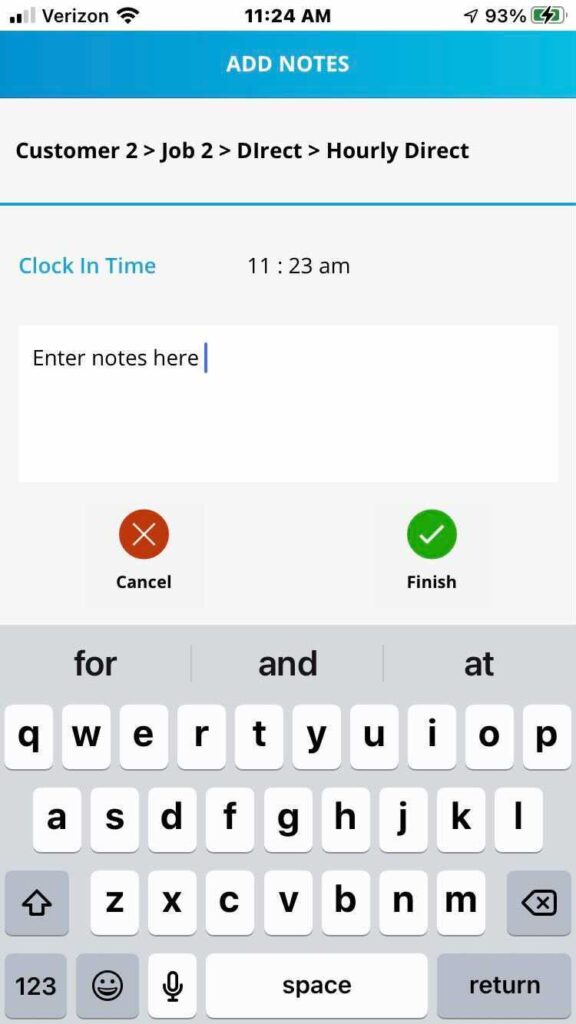
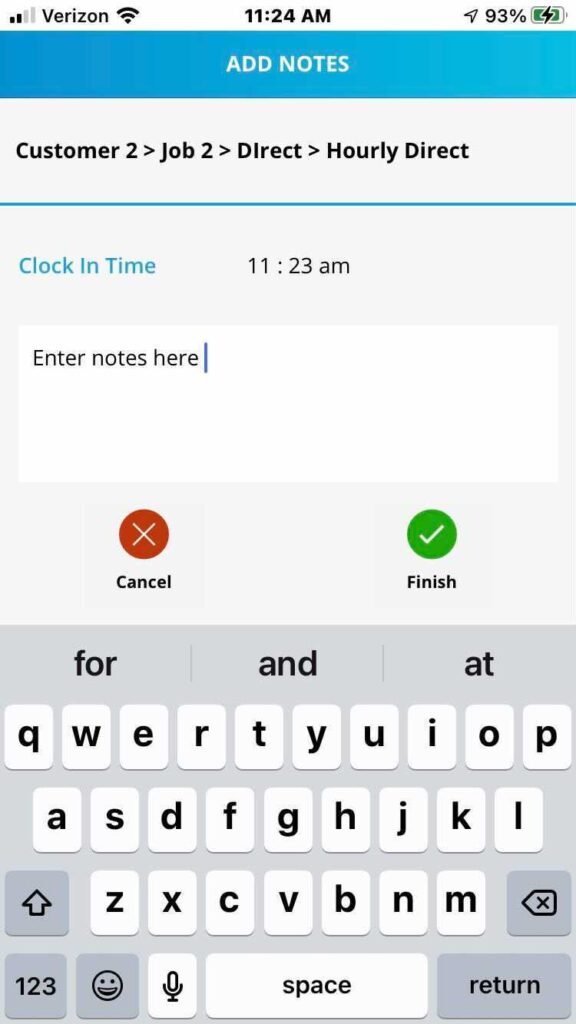
- Enter Notes (if required)
- Click Finish
Clock In/Out Only
Employees who are required to clock in/out daily without associating time worked to a charge code will use this option. Users can have as many in/out pairs as needed (breaks, lunch, etc.). This feature is optional.
- Click Clock In
- Enter Notes (if required)
- Finish
The default setting for this feature is to require a user to select a charge code upon clocking in. This setting can be turned off. To request to have this feature turned off, contact support@hourtimesheet.com
Edit or Remove a Previous Day’s Entry
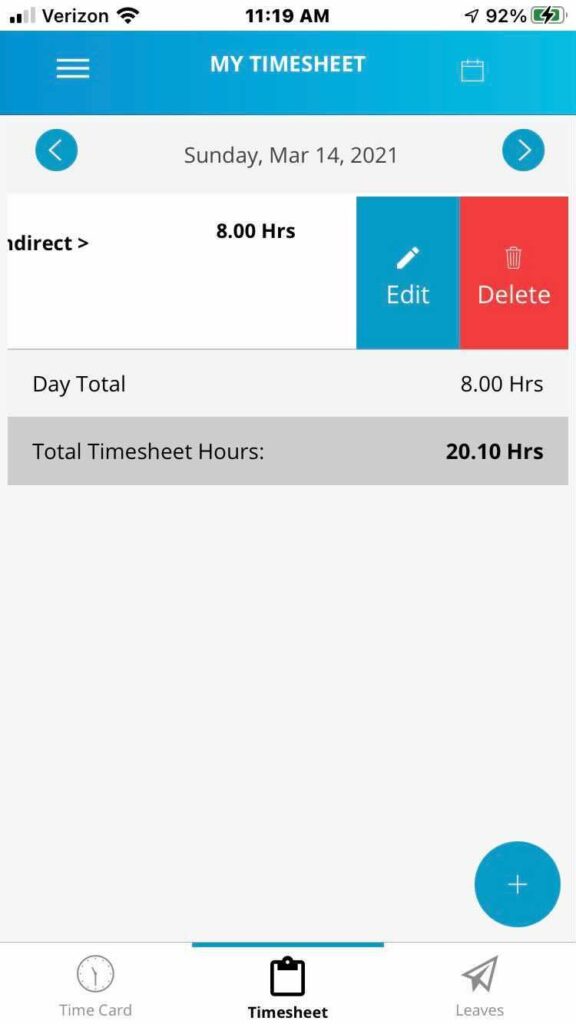
The Time Card tab only allows the employee to clock in/out is the current day. Employees can see/edit previous day’s entries by clicking the Timesheet icon and using the < and > buttons to navigate to the day’s entry to be edited.
Steps to Edit or Delete Previous Day’s Entries
- Click the Timesheet icon
- Use the < and > buttons to navigate to the timesheet day to be edited.
- Swipe left and click the Edit icon to update the number of hours entered or Delete to remove the entry all together.
- Finish