Have a Question?
Option 1 (Forgot Password Link)
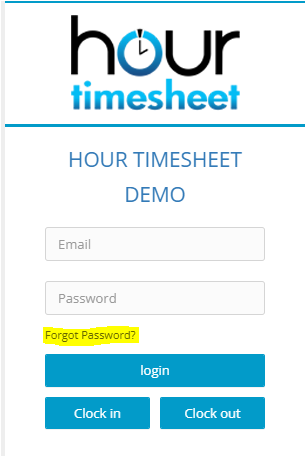
You can use the Forgot Password link to allow user’s to reset a password. To initiate this process, navigate to your Hour Timesheet account URL.
- From the login page, click the Forgot Password link
- When prompted, enter the email address of the user that needs to reset the password. NOTE… an admin can initiate this process for an employee.
If an employee does not receive the password reset link via email, please confirm the correct email address is being used in your Hour Timesheet account.
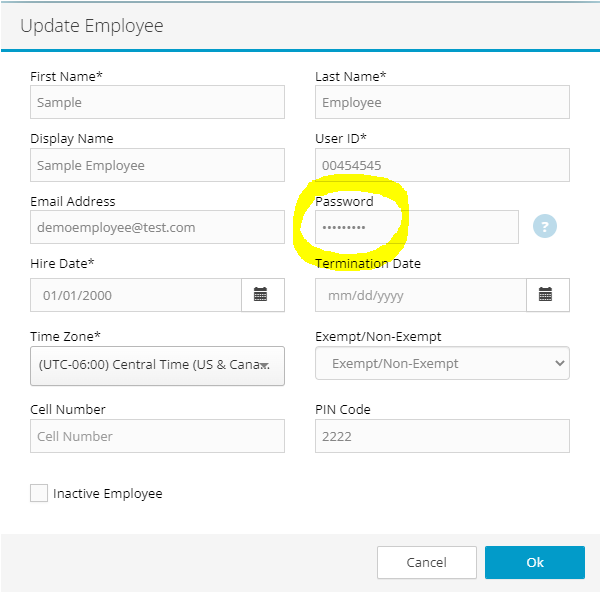
Option 2 Update Password on Employee Profile page (by Admin User)
- Go to Employees/Employee List page
- Search for an employee
- Hit More/Edit from action column
- Employee profile opens
- Change Password
- Hit save
- Share the newly set up password with your employee.
Option 3 Reset/Change Current Password
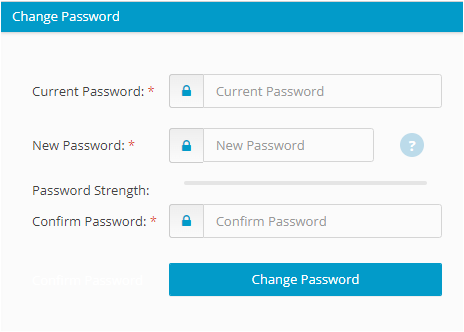
This option applies if a user already knows their password. To navigate to the Change Password feature, follow the instructions below.
- Enter your username and password on your Hour Timesheet account login page
- Navigate to your name at the top right of the page
- Click on the down arrow to view the Change Password page
- Complete the form and click Save Password to update the process