
Have a Question?
Syncing with QuickBooks Online
User Guide for Hour Timesheet QuickBooks Online Export
Before you begin:
- Make sure your Hour Timesheet site is connected to QuickBooks Online.
- Make sure all timesheets are approved . Only approved timesheet data ill available for the QuickBooks Online Export process
Follow the instructions below to export timesheet data from Hour Timesheet:
- Login to your Hour Timesheet login page
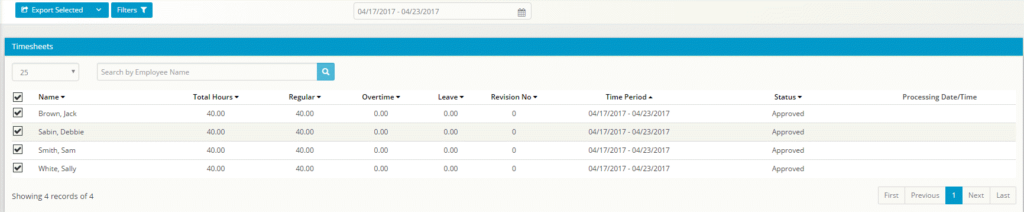
- Navigate to the Export Timesheet menu item
- Navigate to the proper date of the timesheet period to export menu item
- Place a check in the box next to the timesheet(s) that you would like to export
- Click the Export Selected button to begin the sync process.
- After successful export of data, timesheets will be displayed as Processed under the Review Timesheet menu link
Any changes to processed timesheet data will require a Correction timesheet.
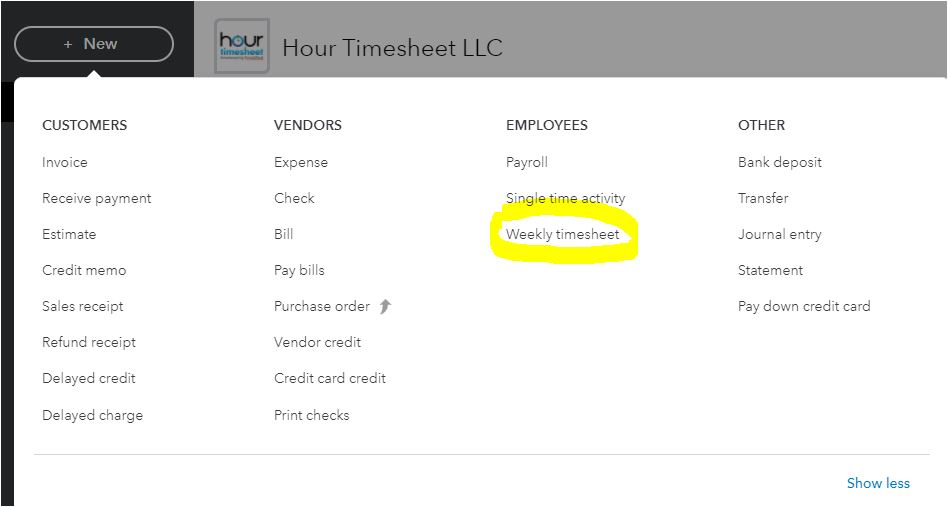
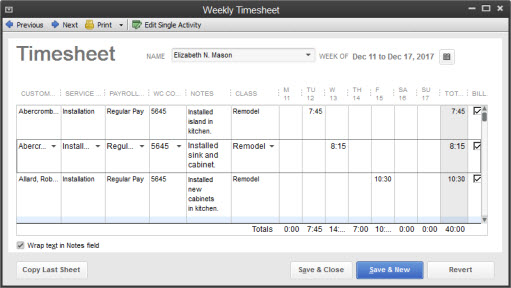
To locate the hours in your QuickBooks Online account, you will need to navigate to the following:
Click the + New button on the top left of the main QuickBooks Online menu/dashboard.
Navigate to the Employee/Weekly Timesheet
Back to Knowledge Base Main