
Have a Question?
-
Accounting Codes/Leave
-
Accounting/Admin Role
-
Accounting/Codes
-
Accounting/Leave Request
-
Announcements
-
Custom
-
Custom
-
Dashboard
-
Employee Role Related
-
Employees
-
Export
-
Exporting Data
-
Frequently Asked Questions
-
General Setup Instructions
- Billable vs Non Billable
- Creating Groups
- Employee Authorized Charge Code Associations
- Manage Charge Codes (Non QuickBooks)
- Manage Charge Codes (QuickBooks)
- New Site Setup Steps
- Overtime Rules
- Setting up and Defining System Roles
- Setting up leave in Hour Timesheet
- Setup Guide For Stand Alone Accounts
- Smart Phone App
- Step 1. Setup Leave Types
-
Groups
-
Importing Data
-
Misc
-
Mobile App
-
My Timesheet
-
Options to Capture Employee Time
-
Payroll
-
QuickBooks Desktop
-
QuickBooks Desktop
-
QuickBooks Desktop
-
QuickBooks Online
-
QuickBooks Online
-
QuickBooks Online
-
Reports
-
Reports
-
Request Leave
-
Run Payroll
-
Run Payroll
-
Schedule
-
Schedules
-
Settings Menu
-
Supervisor Reports
-
Timesheet Review
-
Timesheet Review
< All Topics
Print
Reporting
Posted
Updated
ByDebbie Sabin
Hour Timesheet Reports
1. Navigate to Reports menu
2. Complete the report criteria from the drop-down selections
3. Name the report (no spaces are allowed)
4. Click the Generate Report
NOTE: Your reports will show Processing until which time report is available. Click the refresh icon (yellow dash) at the top right of the page to expedite this process.

Sample Reports
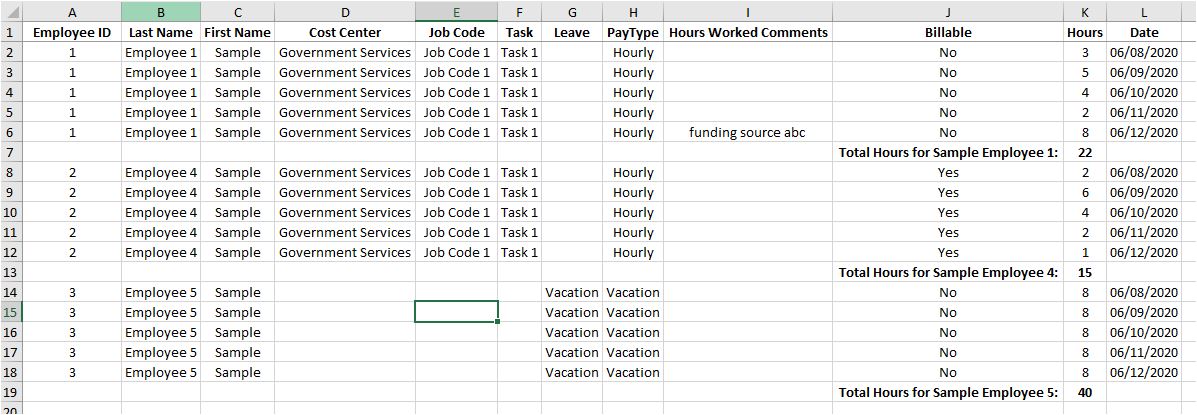
Daily Detailed Hours Report
Provides timesheet entries by day for each employee selected.
Employee Hours
User can summarize timesheet data by the following: Customer/Job, Service Item, Pay Type, Employee

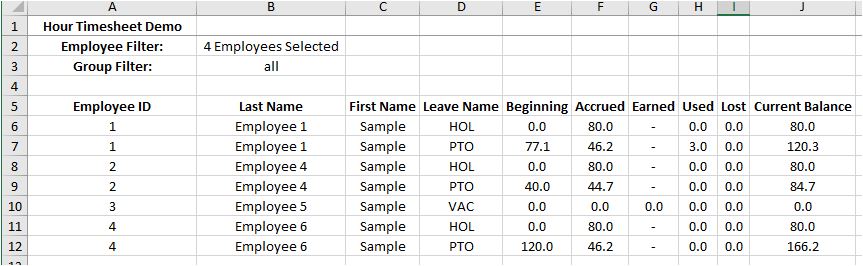
Leave Balance Report
Current leave balance data for each employee
Printable Timesheet Report
Provides a pdf version of the timesheet data. This timesheet includes comments and hours worked.
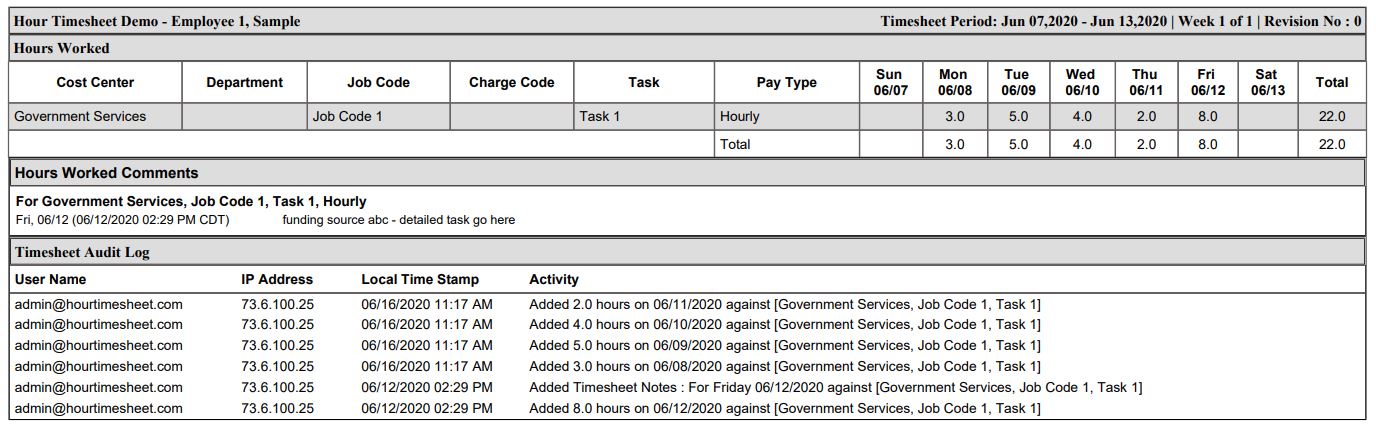
Table of Contents