
-
Accounting Codes/Leave
-
Accounting/Admin Role
-
Accounting/Codes
-
Accounting/Leave Request
-
Announcements
-
Custom
-
Custom
-
Dashboard
-
Employee Role Related
-
Employees
-
Export
-
Exporting Data
-
Frequently Asked Questions
-
General Setup Instructions
- Billable vs Non Billable
- Creating Groups
- Employee Authorized Charge Code Associations
- Manage Charge Codes (Non QuickBooks)
- Manage Charge Codes (QuickBooks)
- New Site Setup Steps
- Overtime Rules
- Setting up and Defining System Roles
- Setting up leave in Hour Timesheet
- Setup Guide For Stand Alone Accounts
- Smart Phone App
- Step 1. Setup Leave Types
-
Groups
-
Importing Data
-
Misc
-
Mobile App
-
My Timesheet
-
Options to Capture Employee Time
-
Payroll
-
QuickBooks Desktop
-
QuickBooks Desktop
-
QuickBooks Desktop
-
QuickBooks Online
-
QuickBooks Online
-
QuickBooks Online
-
Reports
-
Reports
-
Request Leave
-
Run Payroll
-
Run Payroll
-
Schedule
-
Schedules
-
Settings Menu
-
Supervisor Reports
-
Timesheet Review
-
Timesheet Review
Request Leave
Employee Leave Request
This action will generate an automated email from Hour Timesheet to alert the manager or company admin of your requested leave. Once your manager has approved (or rejected) the leave request, you will receive a email from Hour Timesheet with the action taken (rejected or approved). This employee leave request can be edited at any time in the workflow process.
1. Navigate to Request Leave menu
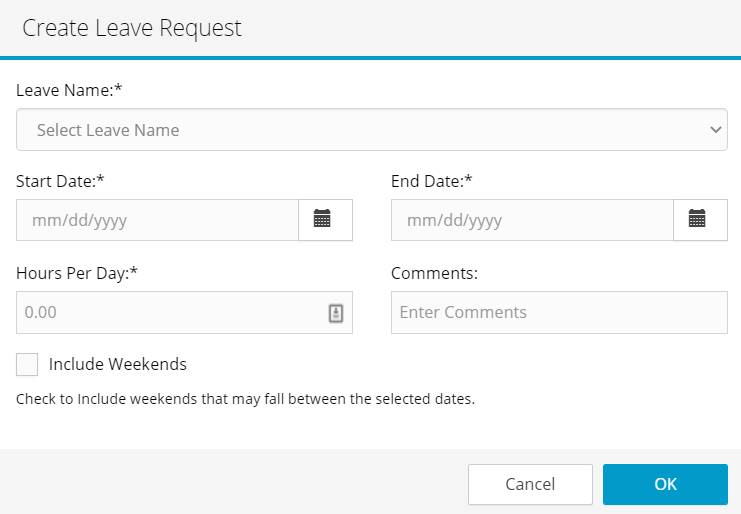
2. Click Create New Leave Request
3. Complete the form
4. Click OK
5. If Notifications are turned on, users with the supervisor or admin role will receive a notification of the requested leave. Upon approval by a manager, the end user will also receive a notification of the action taken for the requested leave. (Approved or Rejected)
Notes
Employee leave request do not auto populate on employee timesheet.