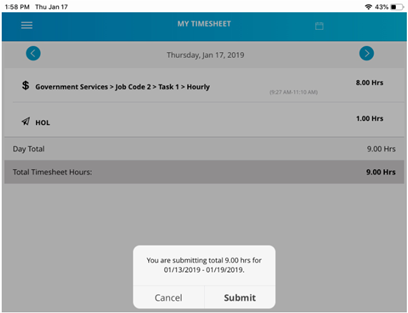
Hour Timesheet Mobile Features
Employees who need to enter timesheet data daily to capture work hours or leave hours will use this tab/option.
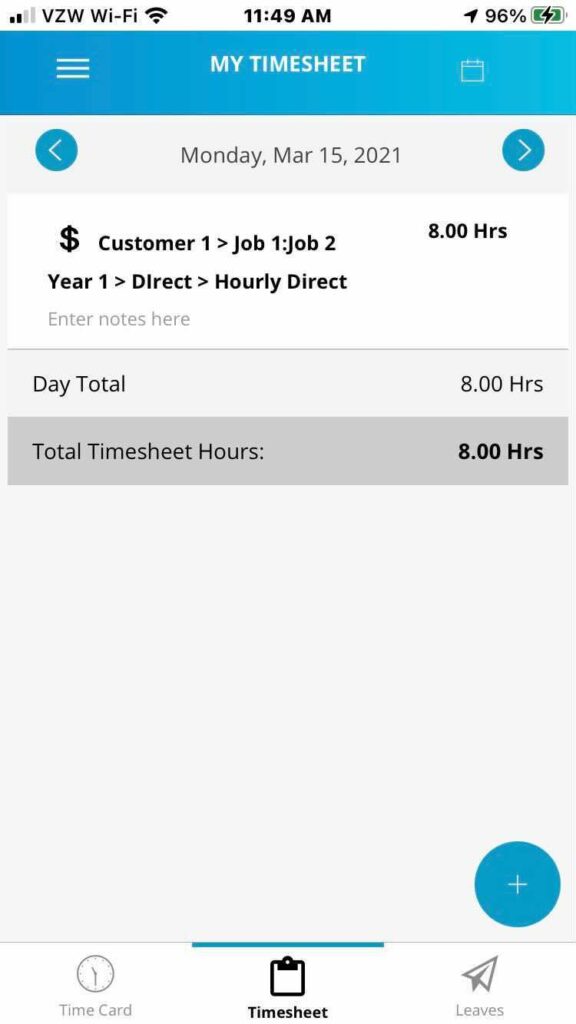
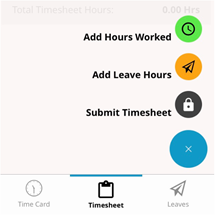
The Timesheet (tab) feature allows users to:
- Add Hours Worked
- Edit Hours Previously Entered
- Add Leave Hours
- Submit/Un-submit a timesheet
Add Hours Worked
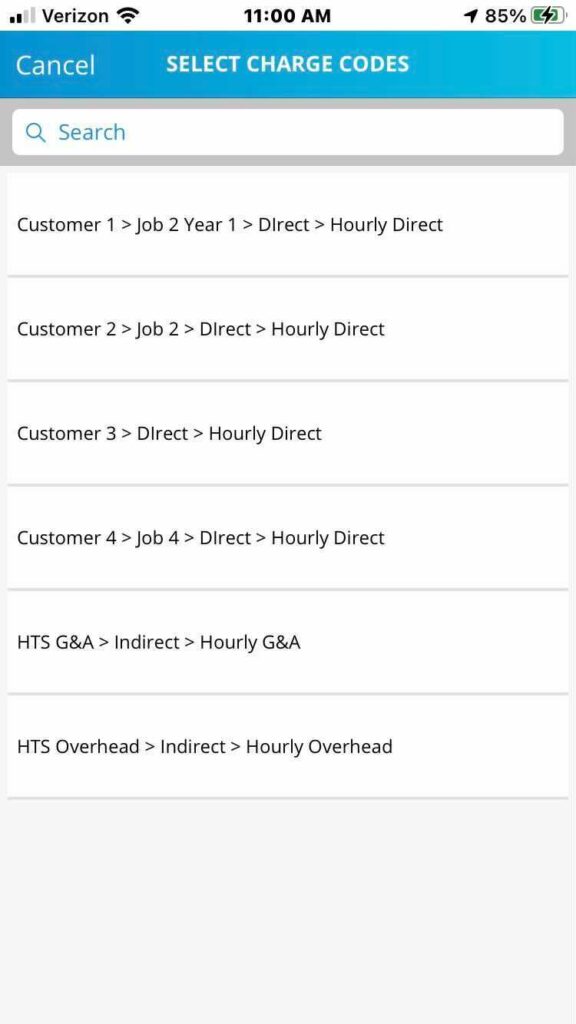
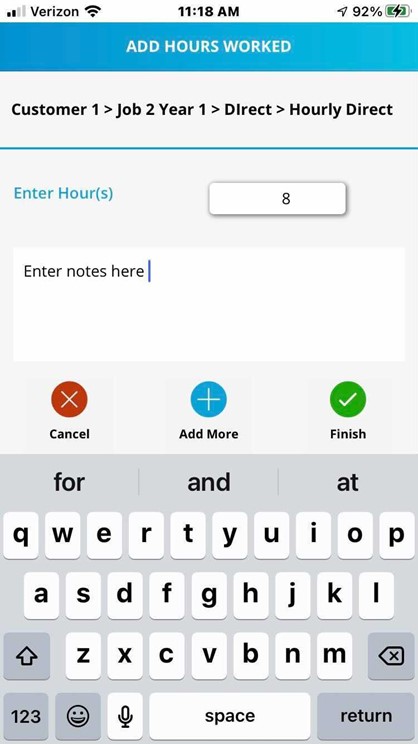
This feature allows the user/employee to select from a predefined list of job codes to enter the duration of time (hours worked) on to the timesheet. Actions Include:
-Selection of charge codes (list of customers/jobs/payroll items to charge time against)
-Daily notes (optional)
-Duration (hours worked)
-Cancel button
-Save button
Steps to Enter Daily Hours Worked
- Click Add Hours Worked
- Select Charge Code
- Enter Hours
- 0Enter Notes (optional)
- Click Finish
Edit Hours Previously Entered
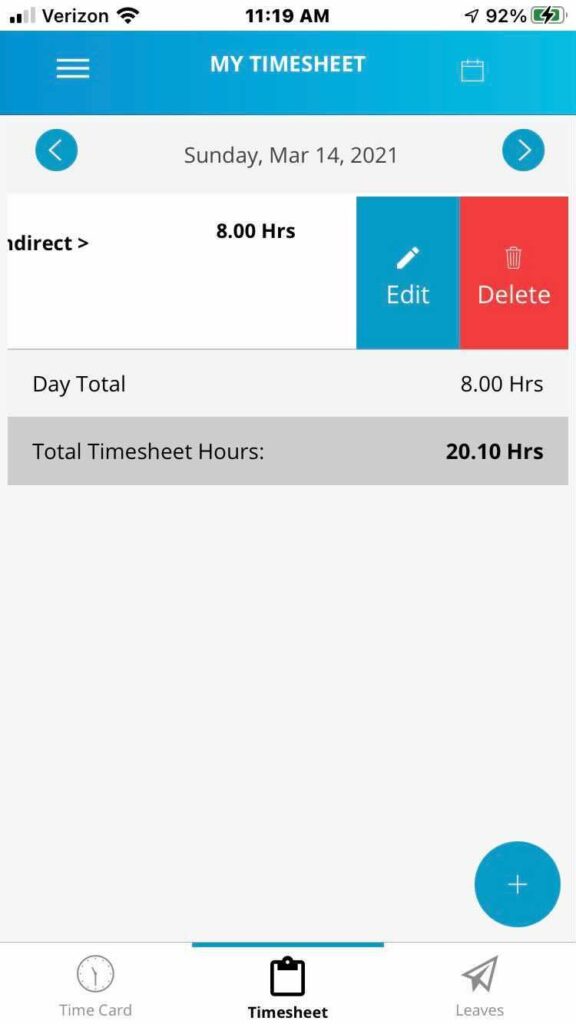
The Timesheet tab contains navigation buttons that allow the user to move from day-to-day to make timesheet entries for different dates (previous or future)
Steps to Edit or Delete Previous Day’s Entries
- Use the < and > buttons to navigate to the timesheet day to be edited.
- Swipe left and click the Edit icon to update the number of hours entered or Delete to remove the entry all together.
- Finish
Add Leave Hours
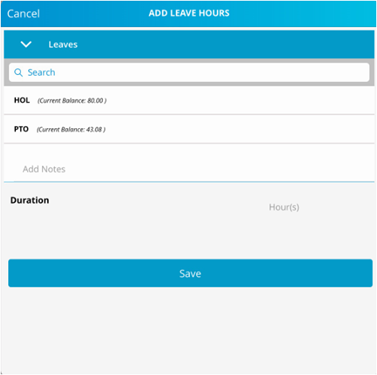
This feature allows the user/employee to select from a predefined list of leave codes to enter on to the timesheet. Actions Include:
-Selection of leave codes (list of leave items to charge time against)
-Current leave balance
-Notes (optional)
-Duration (leave hours to be entered)
-Navigation buttons allow the user to move from day-to-day to make timesheet entries for different dates (previous or future)
-Cancel button
-Save button
Entering Leave / PTO Hours from Hour Timesheet Mobile
1- Hit the Timesheet icon on the bottom of the mobile device
2- Tap on Add Leave Hours
3- Select your Leave Type
4- Enter Hours and Hit Save
Submit Timesheet
This feature allows the user to submit/sign a timesheet for the current timesheet period. Actions Include:
- Cancel button
- Submit button